Showing posts with label Verizon Ambassador. Show all posts

Thursday, August 22, 2013

BlackBerry Q10 with Verizon Wireless

* I am part of the Verizon Wireless Ambassador program. A device was provided to me with three months of service in exchange for my honest opinions about the device. All thought and opinions expressed therein are my own http://ad-for-verizon.com/ *

I have been using the new little BlackBerry Q10 for a few weeks now and I gotta say it's definitely a learning process. I haven't used a push keyboard in a long time, four years to be exact. The last push keyboard I had was my LG slide phone and while that phone was awesome it had it's drawbacks.
Getting side tracked, I am not here to reminisce about past phones, I'm here to fill you all in on the BlackBerry Q10.


So far I have to say the size, well it has it's good side and it's bad. Okay maybe not necessarily bad per say, more like a downside of it. Here's my thoughts.

Good:
I really love the compact size because just like every thing else everyone thinks bigger is better. That is not always the case and this phone is a perfect example of that. It's a rocking little phone and just using it once it will prove it to you.

Bad:
The downside, I'm so used to bigger phones that just getting used to the smallness of it, especially the screen is an adjustment. But the most important thing is the size of the phone doesn't take away from how powerful it really is.

I am looking forward to brining you more updates and sharing my thoughts on this sweet little phone.


Monday, June 17, 2013

Take the It Can Wait pledge today


Did you know that those that send texts while driving are 23 times more like to be in a car crash then those that do not? I had no idea the statistics were that high and honestly that's a downright scary number. I've posted before about how scary the statistics are turning for those that text and drive, heck even talking on the phone, looking for directions, tweeting, etc. Trust me, I get it, we are a technology society but just like admitting an addiction we as a society need to realize the dangers that these electronics pose for not only ourselves but to our children as well. Monkey see monkey do runs true no matter what anyone says. If your kids see you texting and driving they wont see anything wrong with it when they turn 16 and get their first set of wheels. Is that the kind of example you want to se for your children? 


I am no saint but I am trying my damnedest to not text and drive. Most of the time it's seriously simple, especially if you leave your phone on vibrate and in your purse like I tend to do. Out of site out of mind hence no temptation. But there are the occasional times say when I am lost or running late somewhere that I, without thinking grab my phone to text for directions or quickly say I am running late. 99% of the time I wait until I am at a stop but I admit, there are those few times I grab it while driving. That is what I am pledging to not do anymore. I do not want to set that as an example for my children and let them think it's okay to be distracted while driving. 


So today I took the pledge not just for myself but for my children. Will you take the pledge with me? To take the pledge visit It Can Wait. You can sign up via Facebook, the entire process takes less then five minutes. If you do decide to join this movement be sure to come back and let me know so I can virtually give you a high five!


Saturday, May 18, 2013

Tagg Pet Tracker Review

I received a Samsung Note along with the Tagg device from Verizon Wireless to facilitate this review

In February we added a new member to our family, Theta. The cutest little runt Beagle you have ever seen. She is a handful, one I will admit, that I was so not prepared for. See I have never had a dog on my own. I guess I did it backwards. Most people have plants, then dogs then kids. Me...I kill plants and had three kids young, then for some reason I decided we should get a puppy since the kids are a bit older.

Fast forward three months and here we are with our soon to be six month old insane active puppy. When we adopted her the office mentioned getting her chipped and I immediately cringed. You mean like a chip implanted in her skin, that kind of chip? Yeah sorry that would be a no thank you. I just can't agree to chipping an animal. So when I was approached about reviewing a non invasive pet tracker I couldn't say no.

Tagg is a tracker that attaches to your pets collar. It is easy to attach and remove. There are three components to the tracker. Two of them attach together for you to slide onto your pets collar and then main piece (the tracker) then snaps into the other pieces and locks into place. To remove simply press the button on the each side of the tracker and it will unlock.

Now to the tracking part. We all know accidents can and will happen. A perfect example happened this past Friday as I was leaving to take the kids to school. We were all climbing in the car when all of the sudden my oldest starts yelling NO NO NO. Me thinking something bad happened I jumped out of the car and ran to him asking what what...what was wrong? To that he ran to the fence where our dog was halfway through this nice little hole that I had no idea was there. If my son haden't noticed her she could have gotten out and who knows what would have happened. The only thing I can think of is 1) thank god she didn't get out and 2) I am so glad we have the tracker if she had because then I could have seen where exactly she was. The Tagg tracker uses GPS to locate the exact cordinates of your animal at all times. 

To do a little test on this I took her out for a walk and waited to see what happened. When you set up your account online you input your home address and that is set to your dogs home. They give a little leeway around the home location but if they go out of that radius you will receive alerts such as this


That alert was sent to me via text and as a notification directly through the app so there was no way for me to miss it. When you click on the alert it will open the app and show you the last location of your pet similar to this. You can also view the map version as well.


We have since covered the hole in our fence but if this were ever happen again I have the piece of mind knowing that I could still find our littlest member of the family no matter where she may roam off too because through Verizon Wireless the Tagg uses GPS and 4G LTE wireless technology to track your pet's location from your mobile device. And of course part of the fun part about the app is that you can share information from the app about your pet on your favorite social networks. Gotta love technology right!
If you would like to check out the Tagg for yourself you can visit their site here http://www.pettracker.com/
This device is works exclusively with Verizon Wireless devices and you can download the app for free directly from their website or via Google Play or through iTunes.
You can also find them on Facebook https://www.facebook.com/taggthepettracker and Twitter too https://twitter.com/taggtracker
They love hearing from people on twitter and are always quick to respond to questions and/or concerns!

Disclosure: I received a Pet Tagg from Verizon Wireless to facilitate my review along with a Samsung Note to access the app. No other compensation has been given. My opinions, as always are my own.


Tuesday, April 16, 2013

How to get Instagram on your BlackBerry Z10

I am sorry friends Instagram is not on the BlackBerry market just yet....but I have a way around that while we wait for it to come out. And it's really easy, just three short steps and you'll have on your phone. There is a kicker though. You can view everyone's photos that you follow, go through and like them, see their profiles as well as yours but since it is web based you cannot upload photos through it. I know it's a real bummer but if you absolutely need your Instagram fix this is the only way I have found around it for the time being.

1. Go to Instagram.com on your BlackBerry Z10 and log into your account.


2. Press menu (the three small dots in the lower right hand corner) and select "Add to Home Screen".


3. Enter what you would like it to be saved as on your Home Screen and press save.


4. Go to your Home Screen and there you will find the Instagram icon. Simply click and it will bring up the web version of Instagram.


* I am part of the Verizon Wireless Ambassador program. A device was provided to me with three months of service in exchange for my honest opinions about the device. All thought and opinions expressed therein are my own*

Tuesday, April 9, 2013

The new BlackBerry Z10

I am tickled fancy that I was chosen to do another round with Verizon Wireless and be an Ambassador. This time around we were given a BlackBerry Z10 for review. Now I have never used a BlackBerry phone. My husband had one back in the day (I love saying that even though it was only like five or six years ago) and he loved it. I tried using it a few times but it was very blah for me. I Just couldn't get into it so I steered clear and stuck with my LG phones. Well now that I have been using this BlackBerry for a week I am wondering what was I thinking!


I'm just going to start out with a few key points that immediately attracted me to the Z10.

  • Sleek design
  • Light weight
  • Cover on the back of the phone that comes off to remove the battery, SIM card and SD card
  • Graphics are awesome
  • The keyboard is the bomb, yes I said the bomb. It's seamless and has many features that I think all phones should have 
  • There is no home button, I know at first I was very thrown off by this but I actually like that there's still a simple way to return to the home screen
So there's a little sneak peak into my initial thoughts on the BlackBerry Z10. I am really looking forward to delving in and telling you all about this fancy schmancy phone. And trust me, it is fancy!

* I am part of the Verizon Wireless Ambassador program. A device was provided to me with three months of service in exchange for my honest opinions about the device. All thought and opinions expressed therein are my own*


Saturday, March 23, 2013

Pandora is now available on Windows Phone


I don't know about you but learning about this makes me giddy. I listen to Pandora a lot. Okay a lot may be a bit of an understatement. And wouldn't you know I am cheap about it so I don't pay for the premium subscription which means I get ads. Not a huge deal since I have been using Pandora for years now and I am for the most part pretty used to it but now I don't have to worry about that. Oh yes for those of us lucky few with a Windows Phone 8 Pandora is now available for download AND it is ad free through 2013! That's NINE months folks.

One feature I really like is that when adjusting the volume it also brings up your basic controls for Pandora. And even better is it doesn't do it just when your in the app but while your on your home screen as well. Oh yeah and you see what's playing from the home screen. No more having to open the app constantly just to see what band/song is playing.


 To get Pandora on your Windows phone download the app from the Windows store here.

* I am part of the Verizon Wireless Ambassador program. A device was provided to me with three months of service in exchange for my honest opinions about the device. All thought and opinions expressed therein are my own*


Wednesday, March 6, 2013

Wordless Wednesday-Heavy Metal

Not heavy metal as in the genre of music but instead heavy metal as in this giant piece of metal artfully placed over a new section of the freeway out here. Wait...I'm sorry, it's the highway or is it the interstate. My husband keeps telling me they don't call them freeways out here. Oh well I will call it a freeway as long as I live out here.

Anywho, back on track here. I have no idea what this is, what it means and why they put it over the freeway BUT I like it. It's a neat sculpture and you can't deny that it is pretty eye catching.


I took these photos with my insanely awesome HTC Windows 8x phone. Not too shabby huh? Especially considering I was in a moving car. The camera on this phone is insane. By far the best camera phone I have ever come by.

I also edited it on the Windows phone with this nifty app called Fhotoroom. Think Instagram but for the Windows phone and with a TON of editing options. You can sign up for an account and share you photos within their app as well as socially or you can just use the editing software and save the picture to your phone. Me, I do the later because I have enough social sharing sites as it is, I am not sure if I could handle another right now. But that doesn't stop me from using their great editing software.

For more inspiring photos be sure to check out:


Monday, February 4, 2013

Kids Corner on the Windows 8x phone


We live in the digital age and our kids are growing up smack in the middle of it. What does this mean for us adults? That our kids constantly want to use play on our phones. This can be all fine and dandy until things get changed around and inevitably apps get deleted. The Windows phone has this nifty feature called Kid's Corner. What exactly is Kid's Corner? It's pure awesome that's what it is.  

"Create a child–friendly space within your phone using Kid’s Corner. They can access only the apps, music and videos you permit."-Verizon Wireless

Think of it like a computer within a computer, or a better example might be if you have more then one user account on your computer. It's a separate screen within your phone that you can pick and choose which apps you want your child to be able to access.

You ask what is so special about that? Don't other phone's offer something like that?  Well that is a yes and no answer. The iPhone allows you to set restrictions on the phone but in my experience it's more of a hassle to deal with then anything and not worth doing because by setting the restrictions I am then limited by the restrictions unless I go back in and change all of the settings again. Back to the Windows phone. Setup on kids corner is really easy and again, you get to pick and choose what you want on Kid's Corner that your kid's can have access too. Here are step by step instructions on how to set up kids corner on you phone.
  • From your home screen scroll all the way down to the bottom and click the little arrow
  •  Select settings
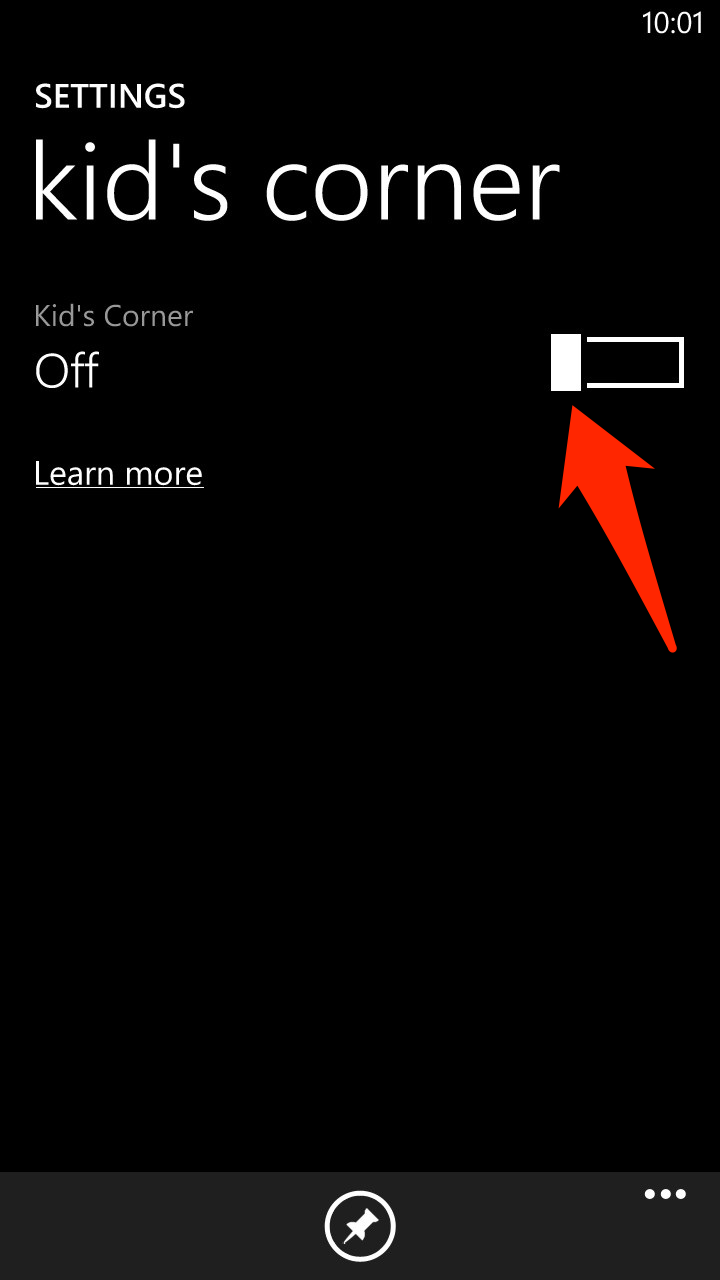
  • Scroll down until you see Kid's Corner, select it
  •  Simply turn it from Off to On


  •  From there your settings screen will pop up.


  • Click any of the options Games, Music, Videos or Apps and it will bring up a new window with all available items on your phone from that genre for you to pick and choose which you would like on Kid's Corner.
The great thing about Kid's Corner mode is that the kids cannot enter the regular side of the phone. The only way to get back to the regular home screen is to press the power button on the top of the phone. It then goes into standby mode and when you go to use your phone the next time it will bring up the home screen. To access kids corner from standby mode press the power button and then swipe your fingers from the right of the screen to the left.

I do want to point out one possible downside to Kid's Corner is having a password on your phone. I always assign passwords out of habit and not wanting certain little one's deleting items on my phone. By having a password enabled on your phone you cannot access Kid's Corner without entering it. At times that may be a downside but on the other side of that it ensures no one will be getting into your phone, either your side or the kids side.

* I am part of the Verizon Wireless Ambassador program. A device was provided to me with three months of service in exchange for my honest opinions about the device. All thought and opinions expressed therein are my own* 


Friday, February 1, 2013

How to take a screen shot on a HTC Windows 8x phone


Today I want to talk about how to take screen shot on the HTC Windows 8x phone. It's one of the first things I learn how to do when I get a new phone and I usually figure it out pretty easily, but it took me up until ohhh five minutes ago to finally do it. I assumed it was like most phones and that you had to press the power button and the start/home screen button. I kept pressing those buttons but I would get one of two results.
1. The phone would go into standby mode
2. It would go into voice recognition mode
Neither of which was what I wanted to do...insert frustration here. I was about to give up on the whole thing but decided to send out a tweet asking if anyone knew how. I figured if the twitter-verse doesn't know then it's probably not meant to be. Verizon Wireless support got back to me almost immediately.


You know the saying that sometimes it just takes another set of eyes for you to see things? Well in this case it rang true. As soon as I tried it after reading Verizons tweet the strangest thing happened...it worked! Don't you love how that happens? Despite my frustration I am just happy I finally was able to get a screenshot.

So here's what you do.

  • Press the power button. That's the push button on the top right of the phone. 
  • At the same time, literally the same exact second,  press the start touch button. The start touch button is the middle button on the bottom of the phone. The one that with the windows icon.

Until you get the hang of it it may be a trial and error/frustrating experience. Or you may be lucky and not have the struggles that I had attempting to do this. But once you get the hang of it it will be a lot easier.


* I am part of the Verizon Wireless Ambassador program. A device was provided to me with three months of service in exchange for my honest opinions about the device. All thought and opinions expressed therein are my own* 


Saturday, January 26, 2013

Connect the HTC Windows 8x to a Mac

I have searched high and low for a way to connect my Windows phone to my computer, a Mac. For months now I have come up empty handed and then I found it, what I have been looking for all along. An application specifically for Mac's from the Apple Store called Windows Phone. I know, completely and totally obvious, I should have been able to find it immediately.

The app itself is pretty self explanatory but I will break down a few key points for you.

After you download the app plug in your Windows 8x phone. Make sure that you do not have the phone locked or it wont start syncing. If you do have it locked it's not something to worry heavily over, simply unlock the phone and it will start immediately.

You can choose to name your device or just leave it as "Windows Phone".
Once it has finished syncing it will show you the status of your memory on the bottom of the screen. Click continue and you can manage your photos, videos, movies, tv shows and you can sync your iTunes music library to the phone as well.
I wanted to point out that if you do not have the current version of iPhoto it will not transfer the MP4 (MPEG-4) files. MP4 files are your videos from your phone.

This entire process took under five minutes to complete, and even though it is not specifically for the HTC Windows 8x phones it's works great and so far I haven't experienced any flaws with the app.


* I am part of the Verizon Wireless Ambassador program. A device was provided to me with three months of service in exchange for my honest opinions about the device. All thought and opinions expressed therein are my own* 

Saturday, December 29, 2012

Verizon Wireless Ambassador part trois

Yes you read that right I am taking on another round with Verizon Wireless and their Ambassador program. Color me giddy, I just love working with this group of people and being able to review, test out, geek out over the new devices is an awesome perk.


In this round I was sent an HTC Windows 8x phone. I will be up front and honest....I am struggling a little bit with this phone. The phone itself is awesome, I love it and I am not having issues with the phone, it's the app store. I am not sure if it's just because it's a relatively new phone operating system so it's still making it's name on the app market or what but as of this moment there are not many apps that are relative to me. Don't fret because it does have the basics, FaceBook, twitter and of course you can add your email but as far as games and a few other categories go it's still working on it. Or at least I hope they are.

Even though I am having a bit of a hard time getting used to this being my go to phone I am excited to learn all about this phone over the next three months and test drive this bad boy out while coming here to share my finds, thoughts and of opinions on the Windows phone.


Disclosure: I am participating in the Verizon Wireless Ambassador program & I have been provided with a wireless device & three months of service in exchange for my honest opinions. 

Thursday, November 1, 2012

Samsung Galaxy SIII my final review

There are two things that stick out higher then anything about the Samsung Galaxy SIII that I absolutely love. I have talked about them before but I think they are so fabulous I just have to talk about them again.

The navigation app. Why does this app make it above all the other apps? Simple. Safety first people. Do you know how dangerous it is to drive and look down at your phone for directions. Not only are you glancing away from the road but you are having to read directions, look at maps and try and figure out if you're actually going the right way which means you're not "just glancing" anymore. You are taking your focus off the road and on to your phone. I could talk about how dangerous this is until my face turns blue but some wont listen unless they have the unfortunate experience themselves of what can happen when they are no longer fully paying attention to driving. My suggestion? Use the navigation app with voice command and make sure you turn the volume up! If you have never used the navigation app don't fret it is easy to access. Simply go into your google maps app. There are two ways to proceed from here.

1. Enter in your destination first, select driving and when your map comes up select the arrow/nav icon on the bottom right of your screen, a window will pop up asking you to complete the action with two options. Navigation or VZ Navigator, select navigation.


2. Next to maps on the top left select the pull down button and directly select navigation from there. With this option you can either speak in your destination or type it out. Again a window will pop up asking if you want navigation or vzw navigation. Now make sure in the menu option that you have the voice turned on or it will not speak your directions. One you have that all set up turn your volume all the way up and set your phone down. From here every thing is hands free and you are good and safe to go.


Now on to the second thing that stands out...speed. I never thought there would be a day when I had to worry about the speed of a phone or that it would even be that important to me. Welcome to the digital age now please take a number and wait your turn for your phone to access the internet, Facebook, Twitter, take a photo, etc etc.
Yeah not really what anyone wants to deal with right? The Samsung Galaxy SIII (don't laugh) has lighting fast speeds. Not once have I had to wait around for a connection or for a page to "think". Every time I have used this phone whatever application I was running has come up instantly. I also have not had any applications crash or suddenly freeze while in use. One thing to help keep your phone running smoothly, as well as to extend the battery life, is to make sure you close your applications when you are finished with them.

And there you have it. My top two favorite things about this phone. If you have a Samsung Galaxy SIII I would love to hear what your favorite things about this phone are!


Verizon Ambassadors


Monday, October 15, 2012

Mobile hotspot setup is as easy as 1.2.3

Have you been wanting to set up your mobile hotspot but aren't sure how? I am here to tell you it's literally as easy as 1.2.3.

This set up example is for a Verizon Samsung Galaxy SIII. The setup is similar on other Android based phones so you can use this as a starting point for other phones.

Step 1:
Open setting


Step 2:
Select Mobile Hotspot & turn it to on


Step 3:
Use it
To connect your device to the mobile hotspot simple open your network preferences and connect to the wifi on your mobile device.

See, I told you. In three short steps you will have successfully turned on your mobile hotspot and you can begin using it on other devices. Now of course there are other options when setting it up but the steps above are the basics. If you want to customize your mobile hotspot, that is another easy process. I am the type that doesn't like to dig really deep because I worry that I will eventually forget what I did and not remember how to change the settings back to their original state, and that I will completely screw everything up. Despite my fears I dove into the advanced settings and played around. And guess what? I didn't mess anything up. I changed the password and added my device to be automatically recognized next time I turn it on and it works like a charm!

I hope these simple step by step instructions help you out if you've been putting off taking advantage of your mobile hotspot.

Verizon Ambassadors

I am a Verizon Ambassador. I have been given a Samsung Galaxy SIII and three months of service in return I will provide my honest feedback.


Sunday, September 30, 2012

Samsung Galaxy SIII, my initial thoughts

This morning my husband asked me if I prefer using the Samsung over my iPhone and I couldn't answer the question. There are many things I love about both phones but to choose one or the other I was stumped. So he changed his question to which do I prefer....the android operating system or the IOS of an iPhone.

That one was easy. I prefer the Android. Sure there are a few features that the iPhone has that the Samsung does not BUT the Samsung puts the iPhone to shame in how much more it offers. Here are just a few things I mentioned to him that I prefer.

  • First and foremost is the back button. Something so simple yet very, very useful. 
  • Camera Megapixels. I know more is not always better but on a itty bitty phone I think it definitely helps take better quality photos. 
  • Speed. This one I have actually argued with my husband about on a few occasions. He didn't believe me that the Android put the iPhone to shame in the speed of use. Especially while using apps such as Facebook and Twitter. I cannot tell you how many time my iPhone froze or took over two minutes just to load. I have never had either issue with an Android. 
  • Complete customization. I love playing around with the settings and making the phone my own, not just a standard everyone has this phone. There are so many different ways to customize your phone that I know I have barely scratched the surface. 
Over time I am sure I will have changed my phone over at least ten times. The fun with that is being able to rediscover things and discover new things about the phone. So far though I am absolutely in love with the Samsung Galaxy SIII.


Verizon Ambassadors

Monday, September 24, 2012

Drive safe with the Safely Go App

Did you know that 23% of ALL traffic crashes (which is at least 1.3 million crashes every year) involve cell phone. And an estimated 1.2 million crashes each year involve drivers talking on cell and at least 100,000 additional crashes are related to drivers who are texting. Those numbers are scary and insanely high. While modern technology is fantastic and always evolving and helping our lives they can also be a distraction, one that we cannot afford while driving. 

Safely Go by Safely is a new free app for Android based phones that is aimed at cutting down on the distractions while driving.
Here's how it works.
  • When you set up your account you can choose to make three contacts your "VIP" contacts. In doing so you will only be allowed to receive phone calls and/or text from those three individuals.
  • While driving and having Safely Go on if you receive a text from someone that is not on your VIP list it will automatically send a text message that you’re on the road and driving safely.
  • Automatically enables calls through your Bluetooth or other hands-free device while driving
  • It will only give you access only to your top three driving apps such as maps, navigation or music. 
Setting up the app is very easy and pretty self explanatory. Make sure that you have your contacts in your contacts list on your phone that you plan on selecting as your VIP's because if they aren't in there they wont show up in Safely Go. When selecting the auto-reply message you can either stick with the default message or type one of your own. 


Starting this app is not difficult at all and I personally love that and think it's fabulous because it's not a ten step process for you to go through when you get into your car. Simply open the app and select the green "GO" circle. Your screen will then look something like the photo below. And that's all you have to do. When you're done driving simply select exit and the app will close.


I plan on running this app on my Samsung Galaxy SIII every time I get in the car because while I try my hardest to keep my full attention on the road and not distracted by technology, alas I am not a saint and I am after all only human. With the app being free and with the statistics out there why wouldn't you want something to help keep your attention where it should be.

Verizon Ambassadors

Wednesday, August 29, 2012

Verizon Ambassador Program with Samsung Galaxy III

I recently embarked on part two of my Ambassadorship with Verizon Wireless and I am very excited about returning for another round with this amazing company. Not only do they have awesome phones but they are truly a great group of people to work with.

Last time I got to review a Droid Razr which I loved and my kids loved it as well. After using it for three months I was very comfortable with the phone and quite honestly I was a little sad that I wouldn't be using it anymore. This round with Verizon I was sent a Samsung Galaxy III and my oh my is this phone sexy.
 A few amazing features this phone offers are:
  • 16/ 32GB User memory AND a microSD slot (up to 64GB)
  • Android 4.0 operating system (the new Ice Cream Sandwich)
  • The main camera features an 8 Mega pixel Auto Focus camera with  flash, zero shutter lag and  BSI (backside illuminated sensor)
  • The front camera features a 1.9 Mega pixel camera, HD recording, zero shutter lag and BSI as well.
  • Lots of Google Apps come standard with the phone such as search, maps, gmail, latitude, google play, google play books, YouTube, google talk, google navigation (which is an AMAZING app) and many more.
  • The ability to set your phone up as a mobile Hot Spot. 
I am very excited to learn all about this phone and share my thoughts and opinions on the Samsung Galaxy III with you all!

Verizon Ambassadors


Thursday, May 31, 2012

Verizon Droid Razr Review-How to manually refresh emails

I feel a little silly admitting I still don't know all the in's and out's of the Droid Razr, but then on the other hand I love that I am still learning/finding new things.

Here is something I discovered today while wondering why my email wouldn't refresh. Sometimes it's not always an automatic thing like some of us may be used to. So if you're staring at your phone wondering "why aren't you showing me my latest emails, I've already seen these one's from four days ago" here is what you need to do.

Depending on which app you use for your email it will go one of two ways. Here is the first way which is by using the email app where you can group different email accounts into the one app.

1. Don't yell at your phone (it's not the phone's fault, really I promise).
2. Open your email.
3. See that little double arrow in the upper left corner, click it.
4. It's not in the menu/three lined area so don't look there.
5. Depending on the last time you refreshed your email it may take a bit, but not too long so don't keep pressing buttons. Just give it a minute or two and you will be all up to date.


The second way to have your emails is if you have the direct app, say Gmail for example. Again this is a very simple process and it makes me wonder how on earth I didn't discover it sooner. 

1. Open app
2. Click menu/three lines at the bottom of the screen
3. Click refresh

Wasn't that easy! I tell you the things you learn while in the midst of frustration can be awesome and make you feel rather silly that you're just now learning something new when you probably should have known it by now. But hey I will look on the bright side and take it as lesson learned and now I know what to do next time my phone doesn't work it's magic and auto refresh.


Verizon Ambassadors